Step-by-step guide
Connect your WhatsApp number
About 10 minutes, from a computer. You connect through Meta, the company behind WhatsApp, and sign in on Meta's own page: we never see your Facebook password.
Before you start
- A computer, or Chrome on an Android phone. On an iPhone or iPad the connection cannot finish yet: open the same page on a computer.
- A number your business owns that can receive a text message or a call, for Meta's code. A landline works by call, if it has no menu and no call forwarding.
- The number must not be in the WhatsApp or WhatsApp Business app. If it is, delete that WhatsApp account in the app first, then wait about 15 minutes. Chats in the app do not move across.
- A Facebook account, and your business's real name and its own website. Meta checks them, and can switch off a number whose details do not match.
- If your business already has a WhatsApp account at Meta with several numbers, tell us which one you want before you start.
The steps
Open Channels and press Connect with Meta
In your dashboard, open Channels in the menu. Read the three points on the Connect WhatsApp card, then press Connect with Meta.
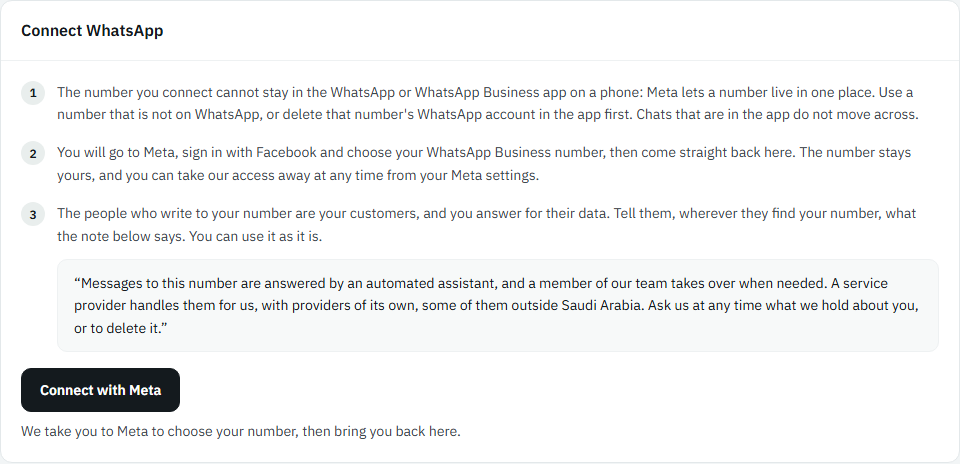
Picture: The Connect WhatsApp card, with its three points and the Connect with Meta button Read the notice, then continue
The notice says what Meta checks: that the number is yours, and that the business name and website match your documents. Press I understand, continue. If you signed in more than 10 minutes ago, type your password again.
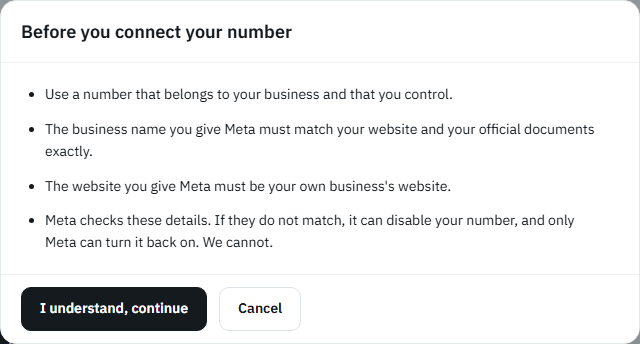
Picture: The notice Before you connect your number, with the I understand, continue button Sign in to Facebook and answer Meta's questions
The page moves to Meta. Sign in with the Facebook account that manages your business, then answer what Meta asks. Meta is changing the order of its screens, so yours may differ, but the same questions come up:
- Your business portfolio: choose it, or create one with your business's real name.
- Your WhatsApp Business account: choose it, or create one.
- The name customers will see on WhatsApp: your business's name as customers know it.
- Your number: add it, then type the code Meta sends by text message or call.
- What the platform may do with your WhatsApp account: review it and confirm.
Back here: connected
Meta sends you back to your dashboard, which says Connected, with your number and its name on WhatsApp. When it says The number is ready, your assistant answers everyone who writes to that number.
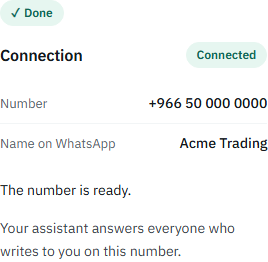
Picture: The connection card saying Connected, with the number and its name on WhatsApp
If something goes wrong
- Meta says the number is already on WhatsApp: delete that account in the WhatsApp app, wait about 15 minutes, and try again.
- Connected, but the number is not ready: press Register the number again on the same card.
- On an iPhone or iPad there is no Connect button: open the same page on a computer, or in Chrome on Android.
- Meta stops with an error, or says the app is not available to you: write to us on WhatsApp and we finish it with you.
- To disconnect, press Disconnect on the card. You can also remove the platform from the connected apps in your Meta business settings.
Stuck? Write to us on WhatsApp and we connect it with you.